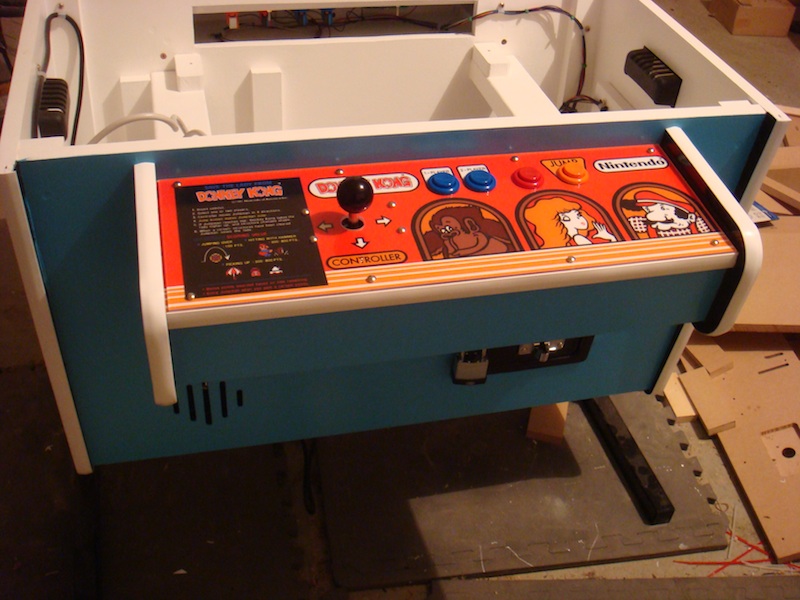
Some more photos – now with tmolding completed on the control panels, caps added to the legs, a pad lock on the coin door and paint touched up. Lighting isn’t the best, but never mind.
Archives
All posts by Andrew Burch
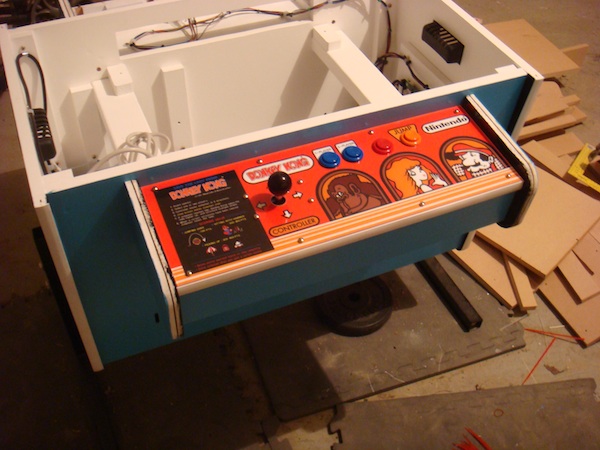
It’s been a good few weeks on the cocktail cab project. As always, managing an hour here, 30 minutes there to keep moving it all along. I have spent time painting the monitor frame and table top panel over the last few weeks – a slow process when you can only get 1 coat in per day.
Firstly, there was a set back with the monitor. Originally I wanted to use a CRT PC monitor, but sizing issues and reliability issues meant I decided to switch to a 15″ LCD monitor. It also lightens the cab by a few KG’s which will be good when it comes time to ship it off 🙂
The first thing that went on since the last update was the coin door, along with it the coin mech, coin catcher and coin counter. Just to the left of the door (inside) sits the service and test switches. These have all been wired up and tested.
The power board and switcher were also installed.
The speaker went in and was wired up, along with the game board and JAMMA harness. I spent time also tiding up the cabling.
The player 1 control panel has also been installed and wired up.
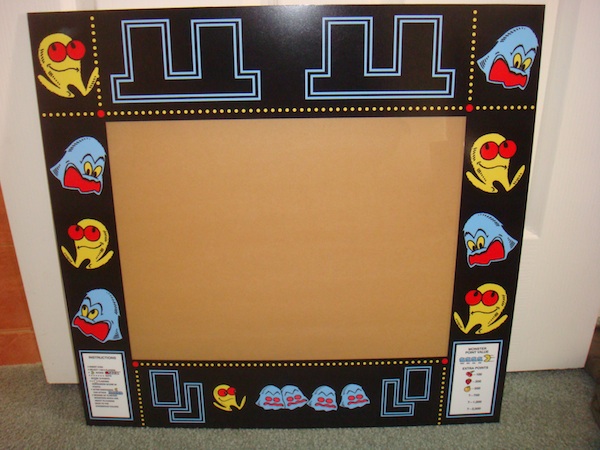
After many months of postponing the completion of this project – it finally comes to a close 🙂 Last friday I went to the printers with the bezel artwork and acrylic and then returned yesterday to pick up the final piece of the arcade machine.
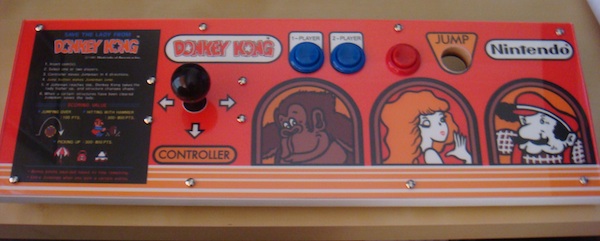
It’s been a busy 2 weeks on the cocktail cab. First up was a pair of control panels – for player 1 and 2. Note the strip of white t molding at the front of the control panel also (the picture doesn’t really show it) – keeping in line with the upright cab version. Also – yes – the orange jump button is missing – I’m currently sourcing two.
I carry a small 10″ netbook around with me a lot and wanted to have Backtrack installed. The netbook runs Windows 7 starter – which I want to keep, and the plan is to have Backtrack 5 R2 running also (so a dual boot).
The netbook doesn’t have a CD drive, so installation for Backtrack will have to be done via USB. The netbook does allow for USB booting (very standard these days), so getting it installed should not be an issue.
Following the installation guide from the Backtrack site (http://www.backtrack-linux.org/tutorials/usb-live-install/), I located a 4GB USb stick, downloaded Unetbootin and followed the prompts before rebooting to run the install.
No go.
Each time the laptop would boot to nothing more than a blank screen with a flashing cursor. Keyboard entry did nothing, and leaving it sit for an hour also got nowhere. I tried a few more times, and did notice a linux boot message of sorts appear for half a second (before the blank screen), but otherwise – nothing.
I tried the USB boot on two other machines (thinking maybe it was an issue with the laptop), and had the same issue.
I did some more research and found some comments (found here) from users referencing a tool called “Universal USB Installer”.
Downloaded the tool, ran and had the ISO “burned” to the USB stick and rebooted. WORKED! First time.
You can find the download available here: http://www.pendrivelinux.com/universal-usb-installer-easy-as-1-2-3/
For anyone having issues getting Backtrack (or perhaps any Linux flavor) to install via USB, I’d recommend giving Universal USB Installer a go.